PuTTY has handled Secure Shell (SSH) on my Windows PCs for years, and I’ve never had much to complain about with the app itself.
That gets really handy if your SSH list includes a few VPSes, a home server, a NAS, Raspberry Pis, or lab machines.
I tagged two machines as Docker hosts, and searching docker narrowed the dashboard down to those two servers.
You can generate an SSH key and install the public key yourself, but OmnySSH handled some of that grunt work for me.
PuTTY still works fine when all I need is PuTTYI’d still reach for PuTTY when I only need a quick shell and nothing else.
PuTTY has handled Secure Shell (SSH) on my Windows PCs for years, and I’ve never had much to complain about with the app itself. Windows offers plenty of ways to handle SSH, but the friction for me came from everything I had to pile on top of the connection itself. I’d open WinSCP as soon as files came into the picture, run the same status commands after every login, keep reusable commands in a separate spot, and repeat parts of that routine across every server I touched.
OmnySSH pulls those jobs into the same app as the SSH connection. I set it up with three Linux test hosts and used it for monitoring, terminal work, file transfers, repeatable commands, and SSH keys. It started making a lot more sense when I stopped sizing it up as yet another PuTTY replacement and looked at how much of the PuTTY routine it could absorb.
My servers became a dashboard before they became terminals
I could decide where to connect before connecting anywhere
Close
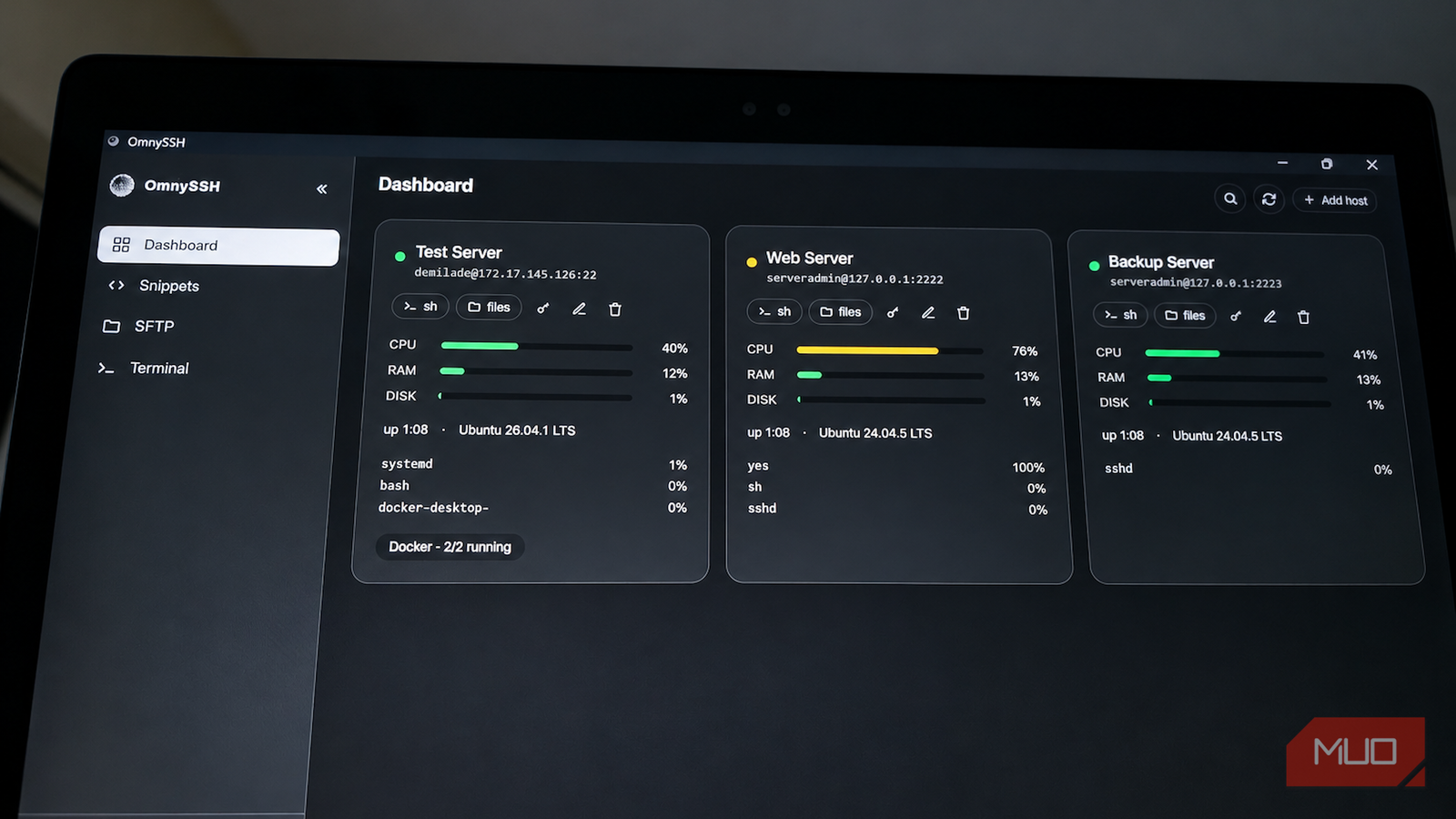
A saved host in PuTTY is mostly a destination you connect to. OmnySSH gives each server a dashboard card with CPU and RAM usage, disk space, uptime, operating system details, active processes, and Docker status when it can detect it. With three hosts added, I could get a quick read on all of them before opening a terminal.
That gets really handy if your SSH list includes a few VPSes, a home server, a NAS, Raspberry Pis, or lab machines. Instead of logging into each one and immediately running uptime , free , df , or docker ps , the dashboard gives you enough context to decide which machine actually needs your attention. It scratches some of the same itch as visual Docker management, except OmnySSH puts that visibility beside the rest of the server rather than focusing solely on containers.
I tested that by deliberately hammering one of my hosts with CPU load. Its CPU usage climbed to 76%, the card switched into an alert state, and OmnySSH showed the yes process using 100% CPU right on the dashboard. I already knew what was behind the spike before I even opened the terminal.
Search works across names and tags too. I tagged two machines as Docker hosts, and searching docker narrowed the dashboard down to those two servers. That could save a fair bit of scrolling once a homelab or VPS collection grows past a handful of entries.
If you only SSH into one Raspberry Pi every few weeks, this layer probably won’t change much for you. The benefit grows as you add more machines and spend more time rebuilding the same context after every connection.
One host kept my terminal and files in the same workspace
The PuTTY and WinSCP shuffle mostly disappeared
Close
My most common SSH detour starts when a terminal job turns into a file job. I might need to grab a config before editing it, upload a Docker Compose file, pull down a log, replace a static asset, or move a backup. With my usual setup, that means opening WinSCP alongside PuTTY and navigating back to the same server.
OmnySSH gives each saved host both a terminal and a two-pane SFTP browser, so I could transfer files over SFTP without splitting the connection across another app, and the terminal session stays open while I move around OmnySSH.
I tested that with a small demo directory on my Web Server. I created a config file from the terminal, switched to SFTP, uploaded a deployment note from Windows, and downloaded the config to C:\OmnySSH-Demo . When I went back to the terminal, the same session and command history were still sitting there.
From there, I changed LOG_LEVEL=info to LOG_LEVEL=debug , tightened the file permissions with chmod 600 , then hopped back to SFTP and refreshed the directory. I could also rename remote files and create folders from the graphical side without interrupting the terminal session.
That split works really well for the kind of admin work I do most often. SFTP handles browsing and transfers, while the shell stays close for ownership changes, permissions, text edits, service commands, and the rest of the work Linux already handles better from a prompt.
OmnySSH does give up some of WinSCP’s depth. I couldn’t find a graphical permissions editor or built-in text editor, and the pencil button in SFTP renames files instead of opening them for editing. Anyone who leans heavily on WinSCP’s more advanced file-management features may still want to keep it around. For my usual upload, download, rename, and shell-edit routine, though, I rarely had a reason to leave OmnySSH.
Repeated server work stopped being repeated terminal work
One saved command could fan out across several hosts
Close
Managing several machines gets tedious when the command stays the same and only the server changes. Other tools, such as OliveTin, can put repeated server scripts behind a simpler interface, while OmnySSH keeps that same repeatable workflow inside the SSH workspace I’m already using.
I built a simple health check that returned the hostname, uptime, and root filesystem usage, then ran it against my Web Server and Backup Server together. OmnySSH kept each machine’s output separate in the results window, so I got both answers without opening two terminal tabs and pasting the same command twice. That same idea could help you check free disk space across VPSes, inspect Docker containers, query a service, read the same log path, or run a harmless update check across several Linux machines.
Snippets can also accept parameters. I created one with a {{path}} variable, entered /etc/ssh/sshd_config when I ran it, and sent the same check to two hosts. You could use the same pattern for service names, container names, directories, usernames, or any other argument that changes between runs.
You can generate an SSH key and install the public key yourself, but OmnySSH handled some of that grunt work for me. On my Backup Server, clicking the key control generated an Ed25519 key, installed it on the server, confirmed that key authentication worked, and updated the saved host to use it. My test account required a password for sudo , so OmnySSH stopped before disabling password authentication instead of pushing through a privileged SSH configuration change it couldn’t complete safely.
I liked seeing that boundary in practice. The automated setup handled the key exchange for me, then stopped when the next step required permissions the account didn’t have.
PuTTY still works fine when all I need is PuTTY
I’d still reach for PuTTY when I only need a quick shell and nothing else. Most of my regular server sessions don’t stay that simple for long.
Monitoring a few machines, figuring out which one needs attention, moving files, returning to an existing shell, running the same check across several hosts, and managing SSH keys used to be spread across several separate workflows. OmnySSH brings enough of that into one place that I don’t have to rebuild the same setup every time I connect.
If you manage a homelab, a handful of VPSes, self-hosted services, or development servers, that broader workflow is the real reason to give it a look.