I already use Good Lock modules to navigate my phone faster, so installing the QuickStar module was a no-brainer.
If not, you can install Good Lock from the Play Store or Samsung Store and then install the module.
Good Lock OS Android Developer Good Lock Labs Good Lock is a powerful customization suite for Samsung Galaxy devices, offering a collection of modules and plugins that let you personalize almost every aspect of your phone.
With Good Lock, you can tweak the lock screen, home screen, navigation bar, keyboard, notifications, and more to match your style and workflow.
When you land on something you like, tap Set as wallpaper and apply it to your home screen, lock screen, or both.
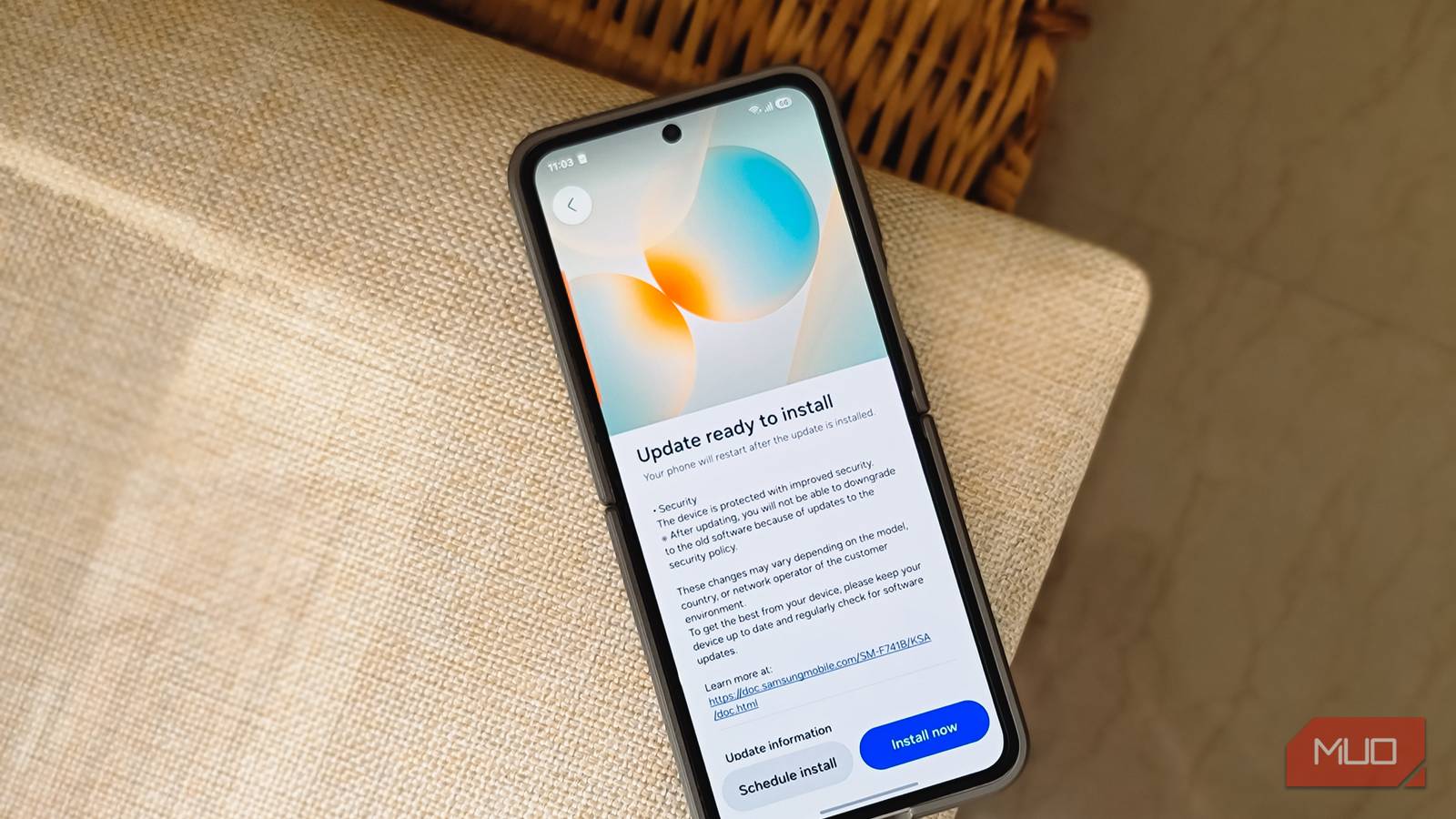
The One UI 8.5 update landed on my Z Flip 6 last week, a bit later than anticipated, but it's here, and it's good. The latest update makes the OS feel fresh and brings a ton of extra features and enhancements, reminding me why I stick with Samsung and One UI.
Of the many changes, there are five that I've liked the most, from the far more customizable Quick Panel to the very convenient new Private Album in the Gallery app. Having spent a week with the new update, these are the first things I'd change on any Galaxy running One UI 8.5.
Resize and rearrange the Quick Panel
More control over toggles and sliders
The first thing you'll likely open after the update is the notification and Quick Panel, so let's start there. Swipe down from the top of the screen twice and tap the edit (pencil) icon. You can now move the toggles around, swap them out, and resize them. Some toggles shrink down to a single square, while others stretch across two.
The brightness and volume sliders can sit horizontally or flip to vertical, and the media player changes its size depending on whether something is playing. To remove a toggle you never use, tap the minus icon next to it. Tap Add a control to bring in more toggles, including ones for third-party apps.
If the stock editor feels limiting, Good Lock can spice it up a little. I already use Good Lock modules to navigate my phone faster, so installing the QuickStar module was a no-brainer. If not, you can install Good Lock from the Play Store or Samsung Store and then install the module. After that, open QuickStar, and under Advanced settings, turn on Resize panel items to resize toggles beyond what the stock editor allows. Just don't go overboard, because resizing everything makes the panel messier than the default layout.
Good Lock OS Android Developer Good Lock Labs Good Lock is a powerful customization suite for Samsung Galaxy devices, offering a collection of modules and plugins that let you personalize almost every aspect of your phone. With Good Lock, you can tweak the lock screen, home screen, navigation bar, keyboard, notifications, and more to match your style and workflow.
Moved my private photos to the new Private Album
Hide photos without leaving the Gallery
Tashreef Shareef / MakeUseOf Credit: Tashreef Shareef / MakeUseOf
While the Quick Panel changes are about convenience, the Private Album is about privacy, and it's easily my favorite addition in this update. I've been using the Secure Folder for years to protect my files, including private photos and videos. It works, but it's clunky for media. Moving photos into the Secure Folder pulls them out of the Gallery entirely, so I had to jump between two apps to find what I was looking for.
The Private Album is an easier option. Your photos stay within the Gallery app, just hidden behind your fingerprint or passcode. To hide something, long-press to select the photos or videos, tap More (three-dots menu), and choose Move to private album. The selected items disappear from the main timeline and your albums right away.
To view them, tap Menu on the Gallery home screen and open Private album, then unlock it with your fingerprint. To unhide an item, open it and use the Move button at the bottom. The Secure Folder still makes sense for documents and entire apps, but for photos and videos, the Private Album is the easier option.
Cleaning up the camera viewfinder indicators
A clutter-free viewfinder with Camera Assistant
Tashreef Shareef / MakeUseOf Credit: Tashreef Shareef / MakeUseOf
The camera viewfinder collects a row of small status indicators at the top, and most of them show settings I rarely change. Samsung has a habit of hiding its best options behind extra steps, much like the helpful Galaxy features that ship disabled for some reason, and the fix here is another Good Lock module called Camera Assistant.
Install Camera Assistant from the Galaxy Store, or grab it from the Plugins tab in the Good Lock app. Open it, scroll to the bottom, and tap Customize indicators. From there, toggle off the indicators you don't want, and they disappear from the viewfinder instantly.
Everything you hide remains available in the four-dot menu at the bottom right of the camera UI. You can customize the Photo and Video modes separately, though a few indicators, like Log, HDR, and the resolution readout, always stay visible in Video mode so you don't accidentally shoot in the wrong format.
Generating a wallpaper using Creative Studio
AI wallpapers built from your own photos
Tashreef Shareef / MakeUseOf Credit: Tashreef Shareef / MakeUseOf
Creative Studio could already generate AI wallpapers from a text prompt, but One UI 8.5 lets you build one around your own photo, which makes the results feel a lot more personal.
Open Creative Studio from the app drawer, scroll left, and tap Create wallpaper. Tap the wand icon to pick a style, such as childhood sketch, oil painting, webtoon, or 3D cartoon. Then select a photo from your Gallery and type a short description of what you want, something like "a villa overlooking this view."
Hit Generate, and Creative Studio blends your photo, the style, and the prompt into a finished wallpaper. My first attempt looked a bit off, but tweaking the prompt and regenerating fixed it quickly. When you land on something you like, tap Set as wallpaper and apply it to your home screen, lock screen, or both.
I added widgets to the DeX desktop
A more tablet-like DeX home screen
I've been using Samsung DeX on and off, and it's a good secondary PC when you don't have access to your primary machine. But it didn't support adding widgets to the home screen. With One UI 8.5, you can finally add widgets to the DeX home screen.
To add a widget, right-click any empty area on the DeX desktop and choose Widgets, then pick the ones you want. If you're using your phone's display as the trackpad, tap with two fingers to simulate a right-click.
I added the weather and calendar widgets, and they make the DeX desktop feel more like a tablet home screen than a bare desktop, which I personally prefer. It's a small addition, but having that at a glance means I open fewer apps for quick checks.
One UI 8.5 is bigger than it looks
After living with One UI 8.5, it's hard not to call this one of Samsung's strongest releases. It feels more polished and refined than One UI 7 or 8.0, and the day-to-day experience is just more enjoyable. The redesigned quick settings and notification panel are the standout, finally letting you make the phone your own without making it harder to use, and core apps like Contacts, Gallery, and Settings look cleaner and more premium while staying familiar.
It isn't flawless, though. Resizable folders look great when expanded, but are tough to make cohesive in the elongated styles, and the keyboard doesn't always match your theme colors after you change them. I might be nitpicking at this stage, but surely there's room for improvement. On balance, One UI 8.5 hits the sweet spot between customization, looks, and function, and ends up being one of the best One UI versions yet.