The Task Manager is one of Windows' most useful tools.
Fortunately, there's a free alternative to Task Manager, AppControl, that doesn't have the same shortcomings as Task Manager.
It shows your performance history, provides more granular control over what's happening, and offers a superior user experience compared to Task Manager.
However, you can break your Windows PC if you end up killing vital Windows processes.
You may still find yourself using Task Manager occasionallyWhile AppControl beats Task Manager at managing apps and processes, there are a few things it can't do.
The Task Manager is one of Windows' most useful tools. It's the first thing I open when my PC freezes or when I want to see which background processes are using the most resources. The only catch is that while it gives you a real-time picture of what's going on, there's no way to track resource usage over time. Additionally, you need to be somewhat technically proficient to understand exactly what is going on: which background processes are normal and which are red flags.
Fortunately, there's a free alternative to Task Manager, AppControl, that doesn't have the same shortcomings as Task Manager. It shows your performance history, provides more granular control over what's happening, and offers a superior user experience compared to Task Manager. I was also impressed by its AI features, which don't feel forced, unlike most other apps nowadays.
See which apps consistently use the most resources
AppControl tracks performance history for the last 3 days
Real-time information isn't really helpful when you want to identify patterns. Since AppControl tracks resource usage over time, you can identify which processes are consistently hogging your PC's resources, not just when you happen to check Task Manager. It's also useful to identify sneaky processes that fire up when your PC is idle.
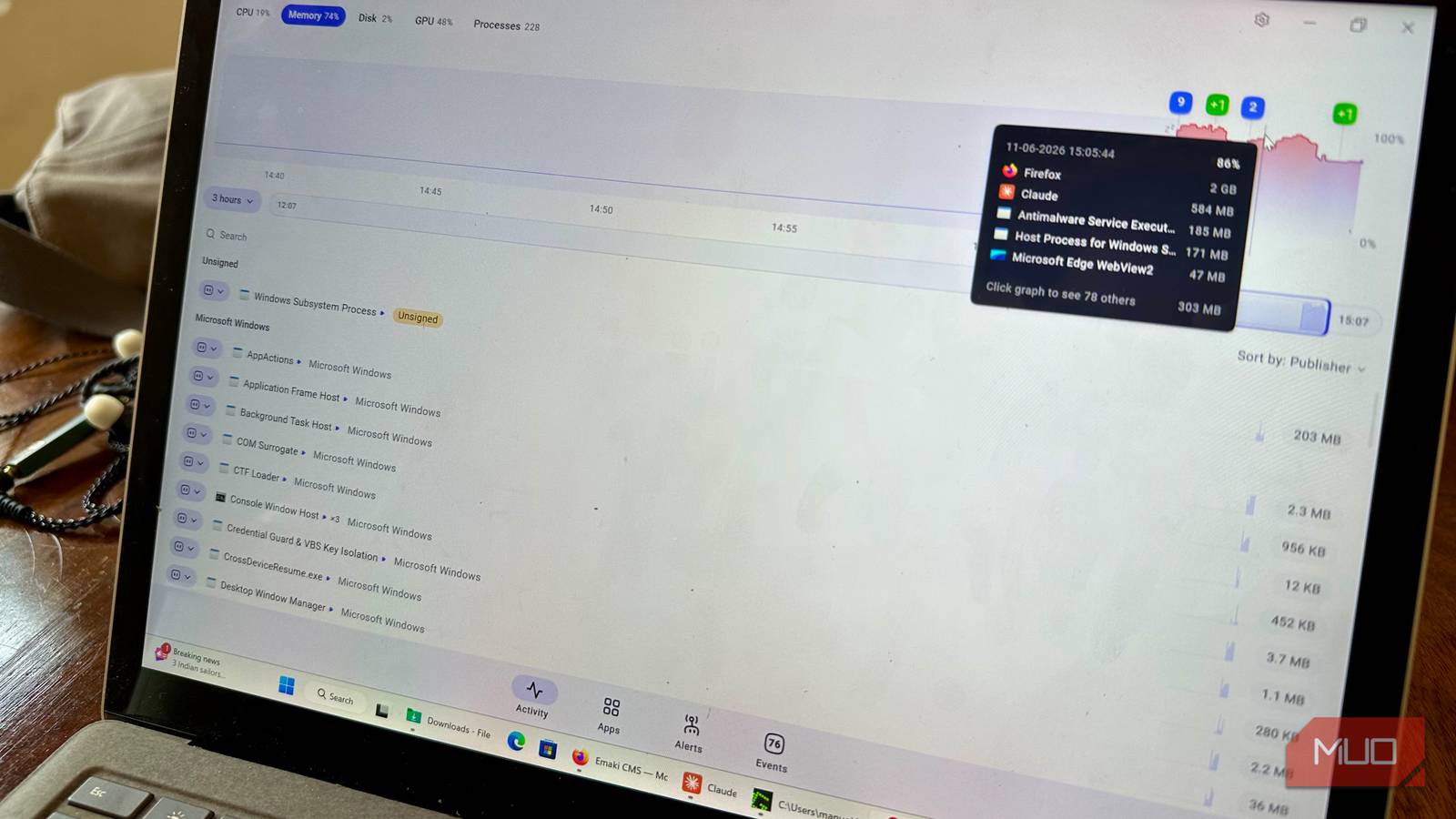
Checking usage history in AppControl is simple: launch the app and ensure you're on the Activity tab. Choose which component's usage you want to track (CPU, RAM, Disk, and GPU) by clicking the relevant option at the top of the graph timeline. You can click anywhere on the timeline to see which apps and processes were using resources at that time. Below the graph, there's a slider you can drag to adjust the timeline. You can also resize the slider to zoom in or out on the graph. By default, the timeline displays the activity graph for the last five minutes. You can click the drop-down menu next to the slider to set this to 3 hours, 1 day, or 3 days.
AppControl OS Windows Price model Free AppControl is a Windows application that shows you what processes are running on your computer and their resource usage. In addition to real-time monitoring, it also shows you the data for the last 3 days.
In addition to resource usage, AppControl tracks your PC's CPU and GPU temperatures. Hover your cursor over any point in the graph, and you'll see the temperature of the selected component listed next to the resource usage in the floating pop-up that appears.
AppControl can do more than just end tasks
Plus, it has genuinely useful AI integration
Just like Task Manager, if you notice an app has stopped responding, you can go to AppControl and end it by selecting the Kill option. But AppControl goes one step further and lets you Disable the app to prevent it from launching again. This is useful for stubborn background processes you don't want consuming your PC's resources.
However, you can break your Windows PC if you end up killing vital Windows processes. To prevent this, AppControl provides you with all the info (in plain English) you need about the selected process in its About section. You can then decide whether it's safe to end the process. You may also want to switch the view to display processes and apps by Publisher. It's always better to leave Microsoft processes running unless it's something like Copilot or similar apps that you don't use.
AppControl also alerts you when apps or processes perform certain actions. By default, it will alert you whenever your camera is accessed, a service changes, or an unsigned app is launched. You can modify these alerts by going to the Alerts tab and dragging the options between the Notify me and No notifications sections.
Subscribe to the newsletter for AppControl insights Get clearer PC-tool coverage by subscribing to the newsletter: detailed comparisons of AppControl and Task Manager, step-by-step tips for tracking resource usage, and plain-English process guidance to help you manage background apps safely. Get Updates By subscribing, you agree to receive newsletter and marketing emails, and accept our Terms of Use and Privacy Policy . You can unsubscribe anytime.
There's an optional open-source MCP extension you can use to query your PC's history with an AI assistant like Claude or Gemini. For example, you can ask, "What unsigned apps ran on my PC in the past day?" and similar stuff. To enable AI integration, go to Settings in AppControl, enable AI Assistant Integration, download the AppControl MCP extension from GitHub, and install it using your AI tool's desktop app.
You may still find yourself using Task Manager occasionally
While AppControl beats Task Manager at managing apps and processes, there are a few things it can't do. For instance, it doesn't have a dedicated startup apps section. Additionally, you can't restart processes, set process priorities, or view full-system specs in AppControl.