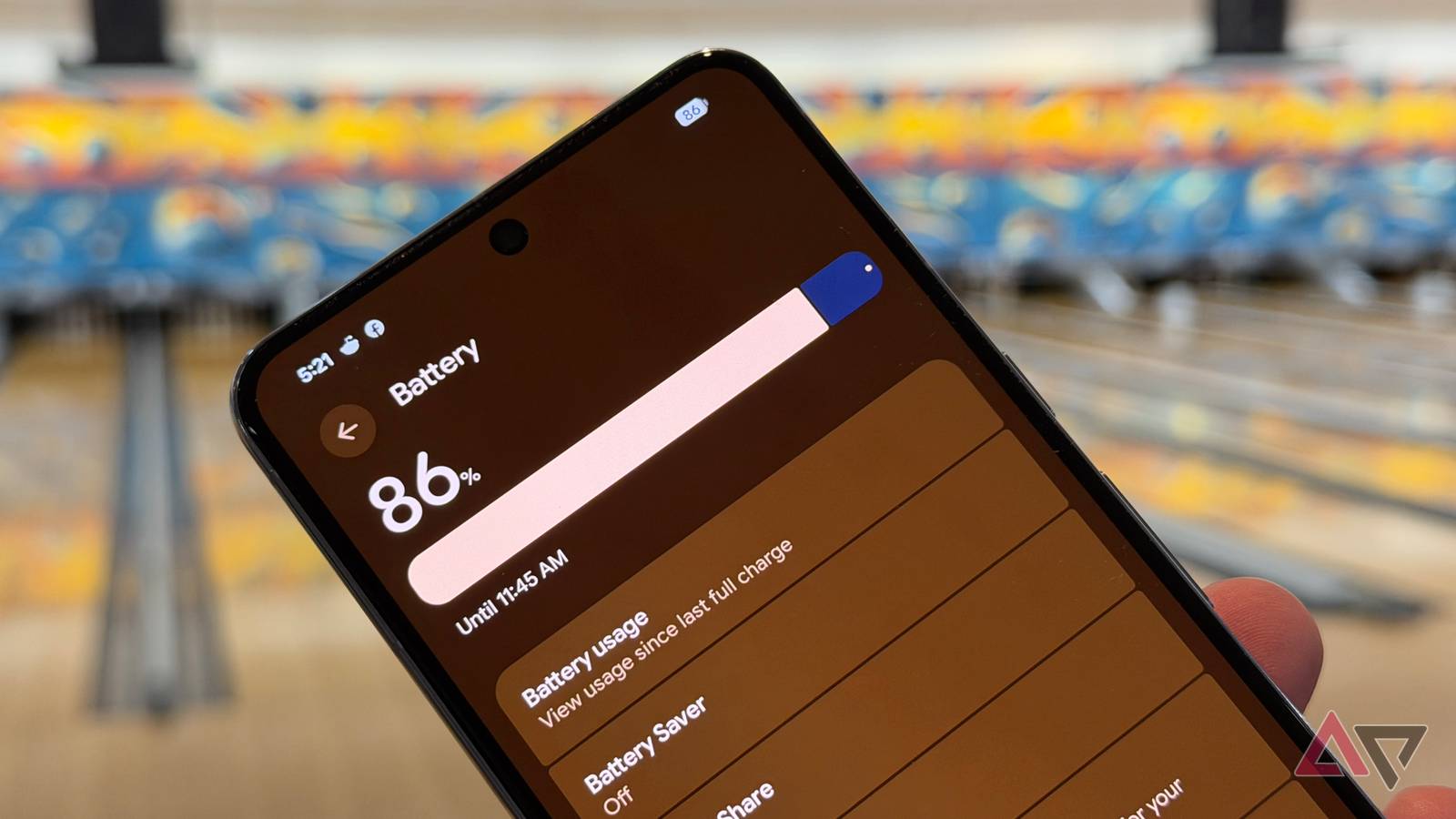
From tweaking my battery settings to uninstalling power-hungry apps, I can make any Android phone I own last for all day or more.
Quiz 8 Questions · Test Your Knowledge Hidden Android settingsTrivia challenge From secret menus to buried toggles — how well do you really know Android's hidden side?
Developer Easter Eggs Hidden Menus Settings Secrets Begin 01 / 8 Developer How do you unlock the hidden Developer Options menu on most modern Android devices?
The correct answer is that Running Services displays active background processes and their RAM usage.
Continue 05 / 8 Developer Which Developer Options setting is most useful for identifying apps that slow down Android's UI by doing too much work on the main thread?
Over the years, I’ve tried practically every method of improving my phone’s battery life. From tweaking my battery settings to uninstalling power-hungry apps, I can make any Android phone I own last for all day or more.
However, I recently rediscovered a way to improve my phone’s battery life that involved a single toggle.
Hidden in the developer settings, this setting has not only improved my phone’s battery life, it has also boosted my phone’s performance. I’ll take any boost I can get when I’m rocking a Tensor-equipped Pixel.
Understand background activity before you disable it
Changing this setting will impact how your phone works
The trick I use now to improve any Android phone’s battery life involves setting the number of allowed background processes to zero.
However, there’s a common misconception around background processes that needs to be cleared up first.
Preventing background processes from running will not prevent you from receiving notifications from your phone app, messages app, and apps like Facebook and Gmail.
These apps will still check and send notifications because they use Firebase Cloud Messaging (FCM), which sends push notifications to these apps from FCM servers. This action is not a background process, confusing as that may sound.
A better name for the setting would perhaps be “Cached background process limit.”
I’ll dive into what this means later in this article, but for now, all you need to know is that stopping background processes will not impact the majority of your notifications. It merely clears out cached data that’s not being used.
Limit background processes and boost battery life and performance
It takes less than a minute
The first thing to do is to enable developer options:
Open the Settings app. Scroll down and tap About Phone Scroll down and tap Build number seven times until you see the pop-up message.
Now, head to Developer options in the System sub-menu of the settings app. Scroll down and tap Background process limit (you can also search for this setting to find it quicker).
Close
By default, this setting is set to Standard limit. This limit varies between manufacturers but is roughly 20 background processes. Change it to No background processes.
You should now notice a small boost in battery life and performance. But how does it work?
See in real time how background processes impact your phone
Background processes use gigabytes of RAM
The effect of changing settings that impact battery life can be hard to quantify. Yes, you might notice an improvement, but how do you know that’s not just a placebo effect?
Fortunately, there’s a nifty way to see the exact impact of limiting background processes.
Before limiting background processes (if you’ve already done it, just reset the setting and restart your phone), go to the Running Services setting in Developer options.
Tap the three-dot menu in the upper-right corner of your screen and select Show cached processes.
Close
Notice the value next to Cached under the device memory bar. This value represents the memory we’re freeing up.
Running Services is also a great place to check for specific apps that might be hogging your RAM in the background.
Take a screenshot of this screen, repeat the steps for limiting background processes, and return here.
You should now notice a drastic reduction in the cached background processes. This screen updates in real time, so you may even see it drop to zero.
In my case, 2GB of RAM was freed up. However, it’s worth noting that the amount of memory background processes use fluctuates rapidly. So, this 2GB reduction merely represented the state of my phone at the time of adjusting these settings.
Quiz 8 Questions · Test Your Knowledge Hidden Android settings
Trivia challenge From secret menus to buried toggles — how well do you really know Android's hidden side? Developer Easter Eggs Hidden Menus Settings Secrets Begin 01 / 8 Developer How do you unlock the hidden Developer Options menu on most modern Android devices? A Triple-tap the Android version number in About Phone B Tap the Build Number seven times in About Phone C Long-press the System Update option for five seconds D Enable USB debugging from the Security settings That's right! Tapping Build Number seven times in About Phone unlocks Developer Options. You'll usually see a countdown message like 'You are now 3 steps away from being a developer' as you tap. This hidden menu gives access to powerful tools like USB debugging, mock locations, and animation scale controls. Not quite — the correct method is tapping the Build Number seven times in About Phone. This Easter egg has been present since Android 4.2 Jelly Bean, and Google added it partly as a playful nod to developers who know where to look. Once unlocked, Developer Options appears as a new menu item in your main Settings. Continue 02 / 8 Easter Eggs What hidden Easter egg appears when you repeatedly tap the Android version number in Settings on Android 12? A A flappy bird-style mini game B A spinning clock face that reveals hidden text C An interactive clock that unlocks a wallpaper painting tool D A hidden Tetris-style game using the notification shade Correct! Android 12's Easter egg features an interactive clock that you can long-press to unlock a colorful painting and doodling tool. Each major Android version has hidden its own unique Easter egg in this same spot. It's one of Google's longest-running traditions, dating back to Android 2.3 Gingerbread. Not quite. Android 12 hides an interactive clock in the version number screen — long-pressing it unlocks a fun painting tool. The flappy bird Easter egg actually appeared in Android 5.x Lollipop, while other versions have featured zombies, cats, and abstract art animations. Google sneaks a new surprise into every major release. Continue 03 / 8 Hidden Menus What is the primary purpose of the hidden 'Running Services' screen found inside Developer Options? A It shows a list of all installed APK files and their signing certificates B It displays currently active background processes and their RAM usage C It reveals apps that have been granted root access on the device D It lists all scheduled alarms and pending background sync jobs Spot on! The Running Services screen shows you every active background process along with how much RAM each one is consuming. It's a powerful diagnostic tool that Android has carried for many years, though it's been progressively hidden deeper in settings as Google has tightened background process management. Tapping any entry lets you stop that service directly. The correct answer is that Running Services displays active background processes and their RAM usage. It's essentially a live task manager tucked away inside Developer Options, and it can help diagnose battery drain or slowdowns caused by rogue background apps. Google has moved it deeper over the years as part of its push to manage background activity automatically. Continue 04 / 8 Settings What hidden feature is accessible by dialing *#*#4636#*#* in the Android phone dialer? A A factory reset confirmation screen B A testing menu showing phone info, usage stats, and Wi-Fi details C A network signal strength booster tool D A hidden SIM card management and unlock panel Correct! Dialing *#*#4636#*#* opens a hidden testing menu with detailed phone information, battery stats, usage statistics, and Wi-Fi connection details. These are called USSD codes, and Android inherited the concept from older feature phones. The menu varies slightly by manufacturer but generally exposes diagnostic data not surfaced in standard settings. The answer is a hidden testing menu covering phone info, battery stats, usage data, and Wi-Fi details. The code *#*#4636#*#* is one of several USSD diagnostic codes that work on Android devices. Another well-known one is *#*#7780#*#* which initiates a factory data reset — so you definitely want to dial those carefully. Continue 05 / 8 Developer Which Developer Options setting is most useful for identifying apps that slow down Android's UI by doing too much work on the main thread? A Show GPU overdraw B Strict mode enabled C Profile GPU rendering D Disable HW overlays Exactly right! Strict Mode makes the screen flash when an app performs long operations on the main UI thread, such as reading files or accessing a network synchronously. It's a developer debugging tool that visually flags violations in real time. Enabling it on your own device can reveal how well-optimised — or poorly coded — your installed apps actually are. The answer is Strict Mode. It causes the screen to flash whenever an app blocks the main thread with slow operations, which is a common cause of UI jank and stuttering. Show GPU overdraw and Profile GPU rendering are more useful for diagnosing graphics rendering issues, while Disable HW overlays forces all compositing through the GPU rather than dedicated hardware. Continue 06 / 8 Hidden Menus What does the hidden 'System UI Tuner' in older versions of Android (6.0 to 11) allow users to do? A Change the default system font without a third-party app B Customise the status bar icons and Quick Settings tiles C Unlock hidden dark mode options before they were officially added D Adjust screen refresh rate independently of the display settings That's correct! System UI Tuner, unlocked by long-pressing the gear icon in the Quick Settings panel, lets users rearrange or hide status bar icons and deeply customise Quick Settings tiles. Google quietly removed it in Android 12, likely because it became hard to maintain as the UI evolved. Many of its features have since been absorbed into standard settings or third-party launchers. The right answer is that System UI Tuner lets you customise status bar icons and Quick Settings tiles. You unlocked it by long-pressing the settings gear icon inside the Quick Settings dropdown. Google removed it in Android 12 without much fanfare, frustrating power users who relied on it to hide the battery percentage, clock, or carrier label from their status bar. Continue 07 / 8 Secrets What happens when you long-press on a blank area of the Android home screen and navigate to 'Home Settings' on stock Android (Pixel)? A You gain access to a hidden icon shape customiser exclusive to Pixel devices B You can enable a secret 'Desktop Mode' that mirrors a PC-style layout C You access options including notification dots, Google Feed toggle, and icon layout tweaks D You unlock a battery optimisation panel tied to home screen widgets Correct! Long-pressing the home screen and tapping Home Settings on stock Android reveals options like toggling the Google Discover feed, enabling or disabling notification dots on app icons, and adjusting home screen grid density. These settings are tucked away in a context menu rather than the main Settings app, making them easy to miss entirely. The answer is that Home Settings exposes options like the Google Feed toggle, notification dots, and home screen layout adjustments. It's one of those menus that many Android users never discover because it's not reachable from the main Settings app at all. The hidden Desktop Mode you may have heard about is a separate experimental feature tied to Developer Options and external display connections. Continue 08 / 8 Developer Which hidden Developer Options toggle, when enabled, forces all apps to use a dark background regardless of whether they officially support dark mode? A Override force-dark B Disable HWUI rendering C Force RTL layout direction D Simulate colour space Absolutely correct! The 'Override force-dark' toggle in Developer Options instructs Android to apply a dark theme to any app that hasn't officially implemented one, using an automatic colour inversion algorithm. Results can be inconsistent — images and some UI elements may look strange — but it's a handy way to extend dark mode to stubborn apps while developers catch up. It appeared in Android 10 alongside the official system-wide dark mode. The correct answer is 'Override force-dark,' which forces Android to apply dark mode to apps that haven't officially added support for it. The system does this by algorithmically inverting light colours, with mixed results depending on the app. 'Simulate colour space' is a different useful hidden tool — it emulates how the screen looks to people with various forms of colour blindness, which is helpful for accessibility testing. See My Score Challenge Complete Your Score / 8 Thanks for playing! Try Again
Background processes are helpful, but not essential
You may notice some things don’t work the way they used to
It’s understandable to assume that such a dramatic change comes at a cost, and this assumption is correct. However, the cost is not as high as you might think.
I’ve had this setting enabled for a week, and I’ve noticed three noticeable changes.
First, notifications are slower to arrive. Tests involving sending emails to myself produced a delay of roughly 10 to 15 seconds compared to before.
Second, some apps take longer to open.
Third, I’ve noticed that location-tracking features (for example, in my Weather app) require a manual prompt to work (usually just opening the app).
But overall, I’ve noticed a boost in battery life and performance, which I think is well worth the trade-off.
A small change can have a big impact
If you follow my lead and set your Android phone’s background process limit to zero, and then keep a careful eye on your Android phone over the next week.
Check whether you are missing notifications from essential apps, or if tracking features you rely on stop working.
If you want to make a similar improvement to your phone’s storage, I recommend disabling the AI Core app. I saved 7GB of space, and all it cost me was AI features I never used.