To that end, I recently also made some tweaks to reduce unnecessary RAM usage on my PC.
After digging a bit, I realized it was the memory Windows uses for Prefetch and SysMain.
What Windows Prefetch actually does and why it’s a problemIt made sense a few years ago, but not anymoreScreenshot by Pankil Shah -- No attribution requiredWindows Prefetch was first introduced during the days of Windows XP.
Subscribe to our newsletter for smart PC memory tips Want more practical PC tweaks like freeing up gigabytes of RAM?
Even if you see RAM usage constantly sitting at 80 or 90% on your PC, that doesn’t imply that your PC is struggling.
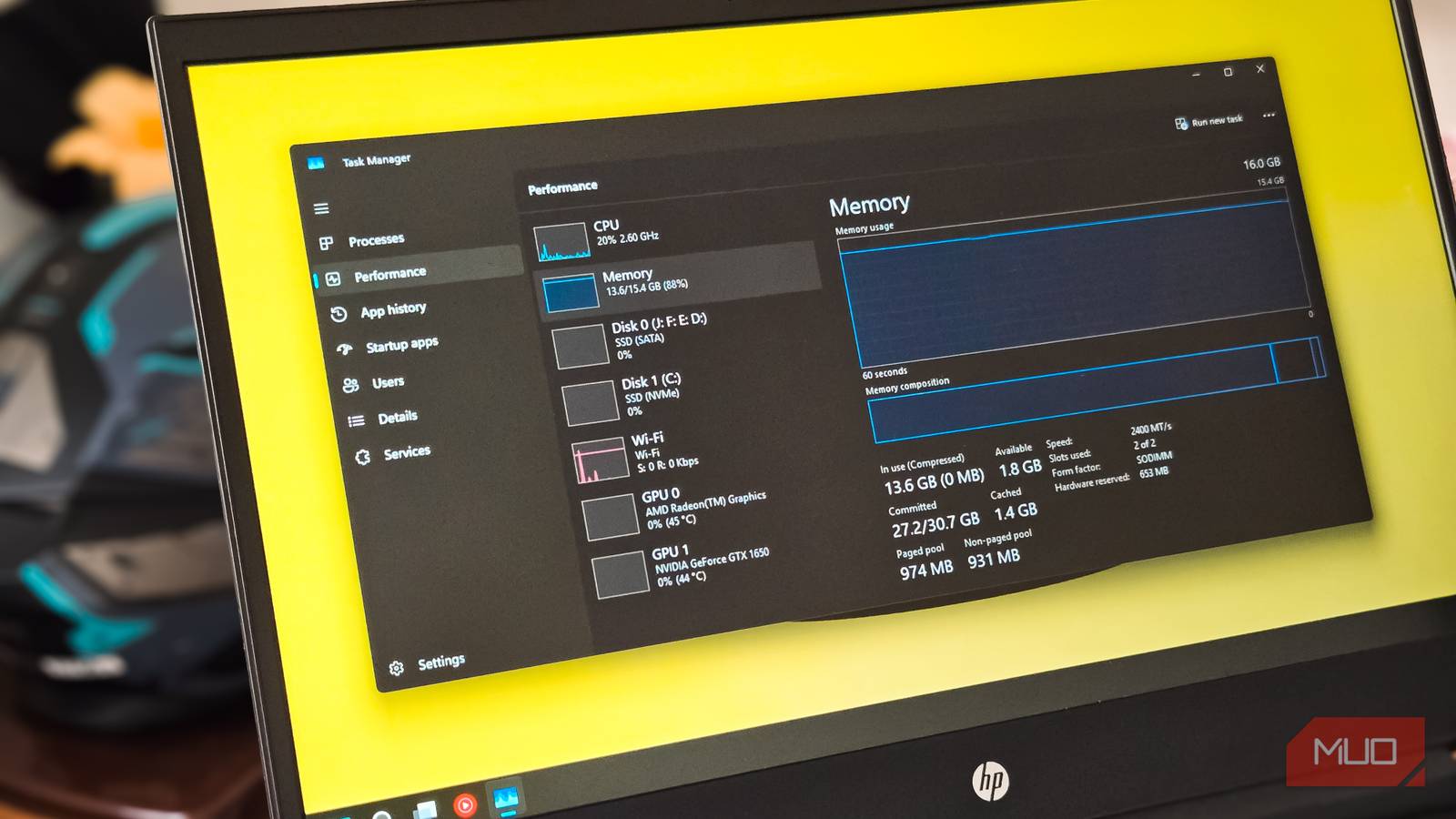
Like most PC users, RAM is something I constantly obsess over. After all, it’s the single most important component that decides how smooth my PC feels during everyday use. To that end, I recently also made some tweaks to reduce unnecessary RAM usage on my PC. And while doing that, I noticed the Task Manager showing nearly 5GB of RAM marked as cached.
After digging a bit, I realized it was the memory Windows uses for Prefetch and SysMain. But neither of these features really necessary for my PC since it already has a fast NVMe SSD. So I decided to disable both, and it made nearly 5GB of RAM usable again.
What Windows Prefetch actually does and why it’s a problem
It made sense a few years ago, but not anymore
Screenshot by Pankil Shah -- No attribution required
Windows Prefetch was first introduced during the days of Windows XP. Yes, it dates back to a time when computers had painfully slow mechanical hard drives. The concept of Prefetch is simple. When you launch an app for the first time, it simply observes which files and resources it uses. It then stores that information so it can use it during the next startup. In a way, Windows uses Prefetch files to keep a record of what apps run on your PC.
Over time, Prefetch evolved into what Windows now calls SysMain (also known as Superfetch). It works slightly differently. Instead of just focusing on startup behavior, this service also analyzes your usage habits and tries to predict what you’re likely to open next. It then preloads parts of those apps directly into RAM so they’re ready to launch when you click them.
All of that sounds great. But the problem is, on modern PCs that have faster SSDs, apps already open fast. And that means features like Prefetch and SysMain don’t really help much. Your PC is occupying several gigabytes of RAM barely to shave off a few seconds.
There’s a reason why your PC does this, though. Windows considers free RAM as wasted RAM. So instead of letting the free RAM idle, it fills it with cached app data through Prefetch and SysMain. And technically, it’s not all bad because when any app or program needs that RAM, it frees it up immediately.
Still, the idea of Windows occupying 5GB of RAM on my PC with no real benefit didn’t sit right with me. Also, depending on your PC’s configuration, this number can be higher or lower for you. You can see this for yourself by heading to Task Manager > Performance > Memory and checking the Cached value. That number represents the memory Windows is using for preloaded data.
Disabling Prefetch and SysMain only takes seconds
I’m glad there’s a way to opt out
Even though SSDs are the norm these days, it’s not as if PCs with traditional HDDs don’t exist. So it kind of makes sense why Windows ships with Prefetch and SysMain enabled by default. The good thing is that Windows lets you opt out if you don’t want these features to aggressively cache apps into memory.
To disable Prefetch, for instance, you need to open the Registry Editor and head to the following path:
Computer\HKEY_LOCAL_MACHINE\SYSTEM\CurrentControlSet\Control\Session Manager\Memory Management\PrefetchParameters
Inside that folder, double-click the EnablePrefetcher entry in the right pane and change its value to 0. Then, hit OK and reboot your PC.
As you may already know, editing registry files can be risky. So, make sure you do it right. It’s usually best to create a registry backup or a restore point before making any changes.
Disabling SysMain is slightly different but just as easy. Open the Services app using the search menu and find SysMain on the list. Double-click it, and click Stop to terminate the service. Then, set its Startup type to Disabled so it doesn’t run automatically the next time it boots. Finally, hit Apply, and you’re done.
Subscribe to our newsletter for smart PC memory tips Want more practical PC tweaks like freeing up gigabytes of RAM? Subscribe to the newsletter for concise, actionable Windows tips, step-by-step how-tos, and vetted tweaks that make maintenance and optimization easier. Get Updates By subscribing, you agree to receive newsletter and marketing emails, and accept our Terms of Use and Privacy Policy . You can unsubscribe anytime.
Of course, none of this will make your PC any faster. It’ll simply free up the RAM Windows was using for preloading apps. But yes, you’ll find that the Memory graph in the Task Manager is much cleaner.
Freeing RAM feels great, but you shouldn't obsess over it
I won’t lie, seeing a huge chunk of RAM suddenly becoming available certainly felt quite satisfying. But the thing is, you shouldn't really obsess over it. Even if you see RAM usage constantly sitting at 80 or 90% on your PC, that doesn’t imply that your PC is struggling. That’s just how Windows is designed to work. Instead of leaving RAM sitting idle, it tries to make the most of it.
So yes, high memory usage doesn’t automatically indicate a problem. What actually matters is how your PC feels in everyday use. If apps are opening normally and your system isn’t slowing to a crawl, there’s simply no need to optimize anything.