Windows 8 was a touch-optimized disaster, and while things improved a little with Windows 10, for many, Windows 11 felt like a step in the wrong direction.
Under its Taskbar section, you can switch from the Windows 11 layout to the Windows 10 style with a single dropdown.
The Start menu section lets you switch the style between Windows 11, Windows 10, and even a full-screen Windows 8.1 style layout from a single dropdown.
You can end up with a Windows 10 taskbar, a Windows 11 Start button, Windows 8 style network flyouts, and a Windows 7 style switcher all at once.
If you're happy with stock Windows 11 or rarely customize your setup, the quirks and occasional flickers aren't worth the trouble.
Since Windows 8, the UI changes Microsoft has pushed with each new version of Windows haven't been received well. Windows 8 was a touch-optimized disaster, and while things improved a little with Windows 10, for many, Windows 11 felt like a step in the wrong direction.
Things felt so bad that many wanted to go back to what Windows 10 offered: a customizable taskbar, a more functional Start menu, and the classic context menu, which Windows 11 replaced with a streamlined but limited option. And perhaps that's the reason ExplorerPatcher, a free and open-source Windows customization tool, has been downloaded a mind-blowing 42 million times and continues to top the charts for a non-mainstream application. I'd read about it, but never gave it a shot, assuming a tool that hooks deep into Explorer was bound to break something eventually. After finally giving it a shot, I understand the numbers.
What's ExplorerPatcher?
It's in the name
image credit - self captured (Tashreef Shareef) - No Attribution Required
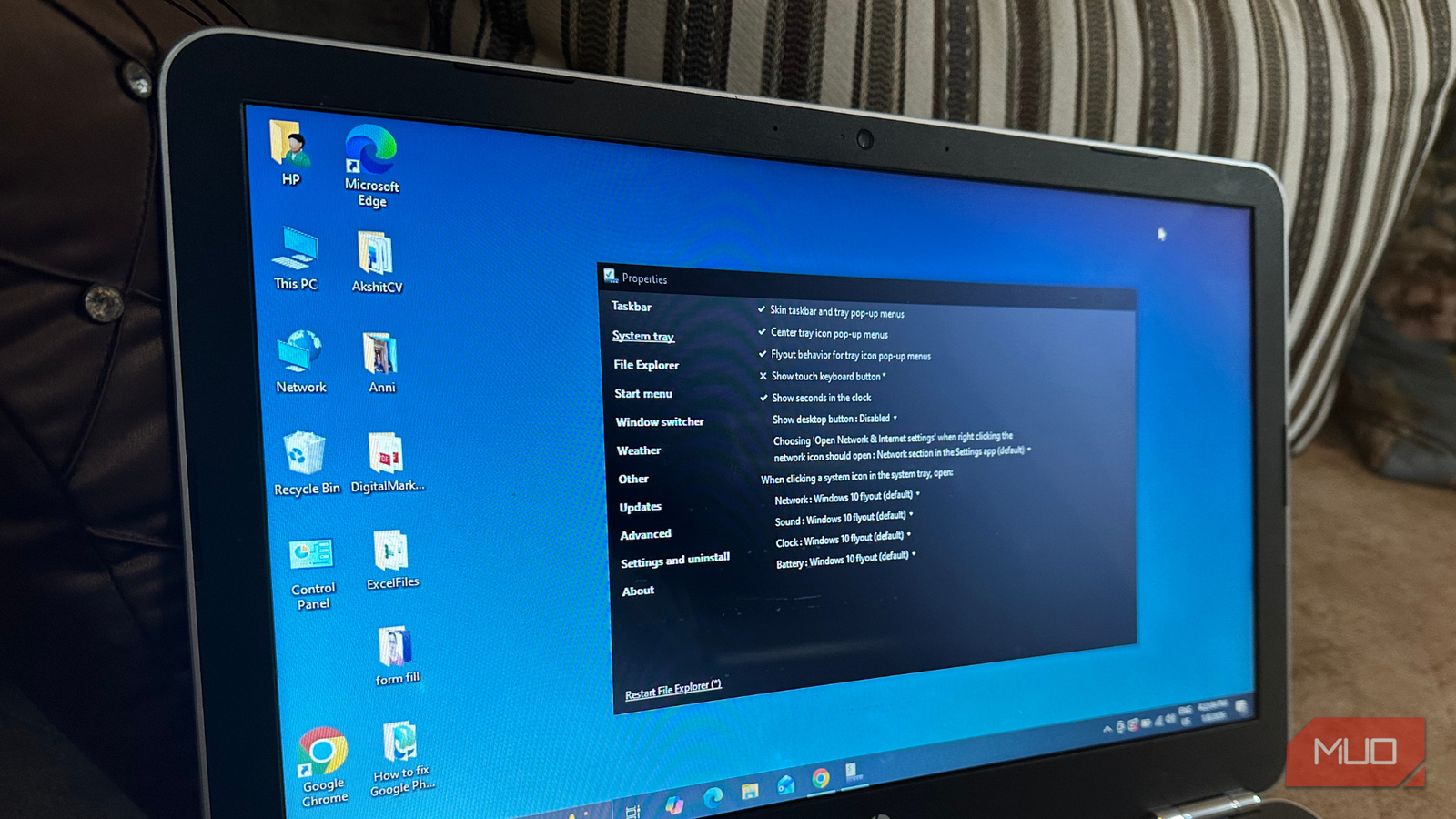
ExplorerPatcher is a free and open-source tool that lets you revert some of the unwanted changes Microsoft made to Windows 11. It can restore the look and feel of the Windows 10 Start menu, make the taskbar more useful by bringing back features Windows 11 quietly removed, and bring back the classic right-click context menu that I find much faster to use.
Sure, the tool has more features than I need and isn't the most user-friendly out there. The settings panel throws every option at you with cryptic asterisks and warnings, but it makes sense once you start poking around with a bit of patience. Each toggle has a clear label, and most changes take effect after a quick File Explorer restart from within the app itself.
What's more, ExplorerPatcher lets you swap the modern Windows 11 quick settings fly out for the older Windows 10 style for individual icons. So you can keep the modern look for the clock and switch the network panel back to the larger Windows 10 list, which is far easier to read on a busy day.
Restore the classic Windows 10 style taskbar
Bring back labels, small icons, and proper grouping
The Windows 11 taskbar has some good bits that you may have overlooked, but it still misses out on the good stuff Windows 10 offered. For instance, you can't change the taskbar orientation to the left or top of the screen, and the small icons option that helped reclaim vertical space is gone.
ExplorerPatcher fixes most of these in one place. Under its Taskbar section, you can switch from the Windows 11 layout to the Windows 10 style with a single dropdown. From there, you get back the small icons option, control over whether the taskbar buttons combine or stay separate, and proper labels so you can read what each running app is at a glance.
I also like that you can mix and match. You can keep the Windows 11 Start button while running a Windows 10-style taskbar underneath it, or set primary taskbar alignment to centered while keeping the secondary taskbar on multi-monitor setups at the screen edge. Combine that with the always-combine, never-combine, and combine-when-full options, and the bar finally feels like something I configured instead of something Microsoft handed me.
A more flexible Start menu
Three styles, one dropdown
image credit - self captured (Tashreef Shareef) - No Attribution Required
Windows 11's Start menu is locked down to one design with limited customization. You can rearrange pins, toggle a few suggestions, and that's about it. ExplorerPatcher opens up the Start menu in ways the operating system itself doesn't allow.
The Start menu section lets you switch the style between Windows 11, Windows 10, and even a full-screen Windows 8.1 style layout from a single dropdown. The Windows 10 option brings back the live tile area that worked well for me as a quick dashboard, while the full-screen mode is a strange but workable option if you want a launcher-style experience on a larger display.
Beyond the style switch, you can change where the Start menu appears on-screen by setting Position on screen to At screen edge, which docks it to the corner instead of floating in the centre. You can also disable the Recommended section, set Start to open in the All apps view by default, and choose how many frequently used apps appear. None of these toggles exists in stock Windows 11.
Revert the changes to File Explorer
Faster navigation and a usable command bar
Microsoft modernized File Explorer with a WinUI 3 front end, and while it looks cleaner, it feels slower and less reliable than the older version. The Home tab can take a beat to load, and Explorer occasionally hangs while moving between folders. Disabling recent files and Office integration helps a bit, but the underlying sluggishness stays.
This is where ExplorerPatcher made the biggest difference for me. In the File Explorer section, I switched Control interface from the Windows 11 command bar to the Windows 10 ribbon, and the difference was immediate. Folders open faster, drag-and-drop to the top of the window works again, and right-clicks feel snappier than the modern command bar.
You can also disable the Windows 11 context menu entirely so the classic right-click menu shows up by default without the extra "Show more options" click. If you prefer a simpler look, the Windows 7-style command bar is also an option. These tweaks alone fix most of the long-standing issues with File Explorer that I'd learned to live with.
Things I didn't like
Quirks, oddities, and the occasional flicker
Tashreef Shareef / MakeUseOf Credit: Tashreef Shareef / MakeUseOf
ExplorerPatcher is powerful, but it has its rough edges. Because it hooks into Explorer to apply most of its changes, you'll see a brief flicker or a full Explorer restart every time you toggle a major option. It's not a dealbreaker, but it can be jarring if you're in the middle of something.
The mixing of styles can also produce odd combinations. You can end up with a Windows 10 taskbar, a Windows 11 Start button, Windows 8 style network flyouts, and a Windows 7 style switcher all at once. It works, but it doesn't look coherent, and you have to actively pick a consistent theme to avoid the Frankenstein look.
Updates are another thing to watch. ExplorerPatcher hooks deep into Windows internals, so a Windows feature update can occasionally break a setting or trigger an Explorer crash until the developer pushes an update. The uninstaller also triggers the SmartScreen "Windows protected your PC" warning, which can confuse less technical users.
ExplorerPatcher OS Windows Price model Free ExplorerPatcher lets you restore classic Windows 10 taskbar, Start menu, and File Explorer elements on Windows 11 — giving you full control over the shell experience without reinstalling an older OS.
Worth the trade-off, with a caveat
I tried ExplorerPatcher because I was tired of working around Windows 11's design choices, and after a few weeks of running it, I get why 42 million people have downloaded it. The taskbar fixes alone made my daily workflow smoother, and the File Explorer changes made the OS feel responsive again on the same hardware.
That said, this isn't a tool I'd recommend to everyone. If you're happy with stock Windows 11 or rarely customize your setup, the quirks and occasional flickers aren't worth the trouble. But if you've been quietly missing what Windows 10 used to do well, ExplorerPatcher is the closest thing to having both worlds on one machine.